
Terminals
Using your favourite terminal with XPipe
Introduction
XPipes comes with integrations for almost every terminal tool out there, so chances are high that you can keep using your favourite terminal setup in combination with XPipe.
However, the amount of features for each individual integration depends on how much is possible to control from an outside application like XPipe with each terminal. Some terminals allow very flexible control so that XPipe can implement all the functionality it needs. Other terminals lack some features, for example, proper tabbing support. As described later on this page, a lack of certain features can also be offset by using additional tools like a terminal multiplexer.
This page intends to cover all the things to watch out for when using various terminals and how to configure them so that they can work with XPipe in the most optimal fashion. Note that this page does not list all supported terminals, it only covers important ones that might need additional context.
Terminal docking
On Windows, you can dock terminals to the XPipe application window. When enabled, XPipe will then manage and resize the terminal window to fit into the connection hub:
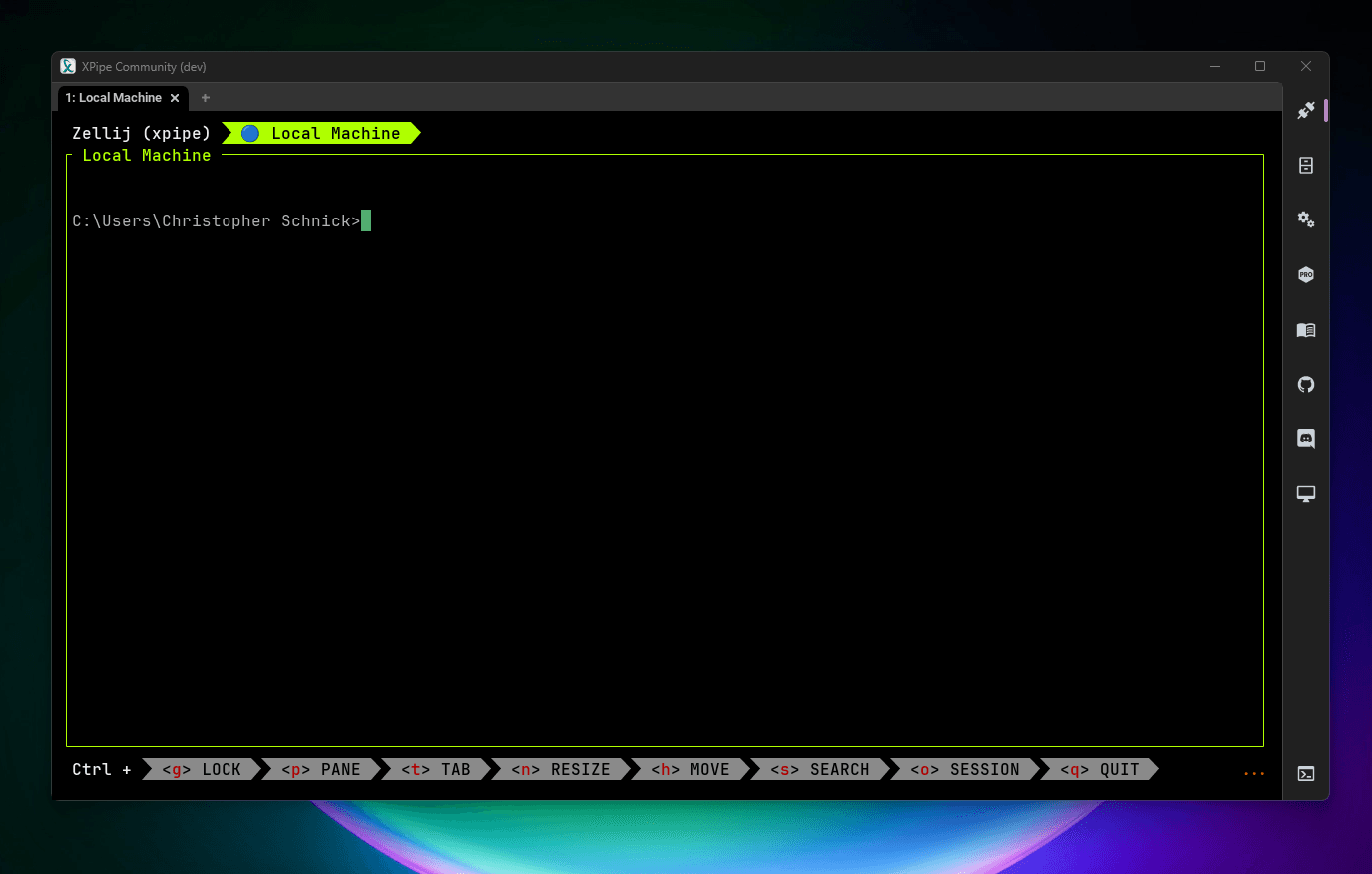
A docked terminal is fixed to the XPipe window but can also be detached from it. If you move the terminal window away manually, e.g. by dragging it or using keyboard shortcuts, it enters a detached state where XPipe no longer manages the terminal.
You can also minimize the terminal normally, plus also toggle the terminal with the terminal dock button that will show up at the bottom right when a terminal is active:

The dock button will also change the icon depending on the terminal state, e.g. when it is detached or minimized.
This button also has the shortcut of CTRL+T assigned to it, meaning that you can show the terminal again with CTRL+T while XPipe has focus. Note that you can't use the same shortcut to hide the terminal again unless the XPipe window has focus as usually the terminal becomes focused once it gets shown.
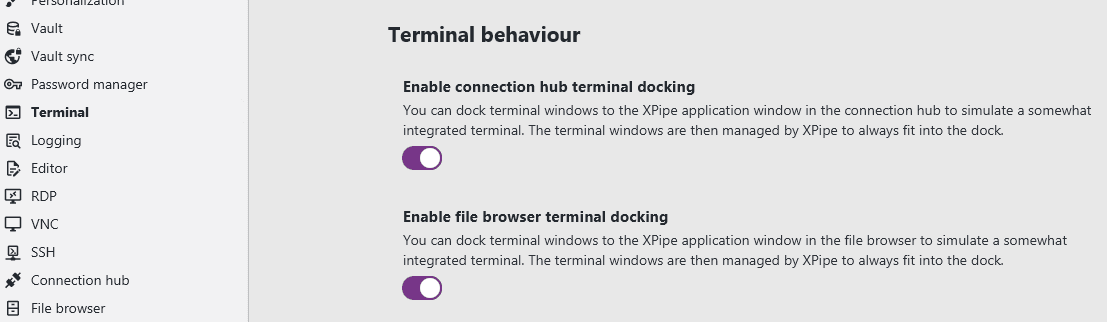
If you want to disable the terminal docking completely, you can do so in the settings menu:
Window focus
The terminal dock might feel a little weird at first due to how it works with controlling the terminal window. The main thing to keep in mind is that XPipe manages the terminal window, not the other way around. This means that if you want to move the windows to another position, you will have to drag the XPipe window, not the terminal window. The XPipe window then automatically moves the terminal for you if it is attached.
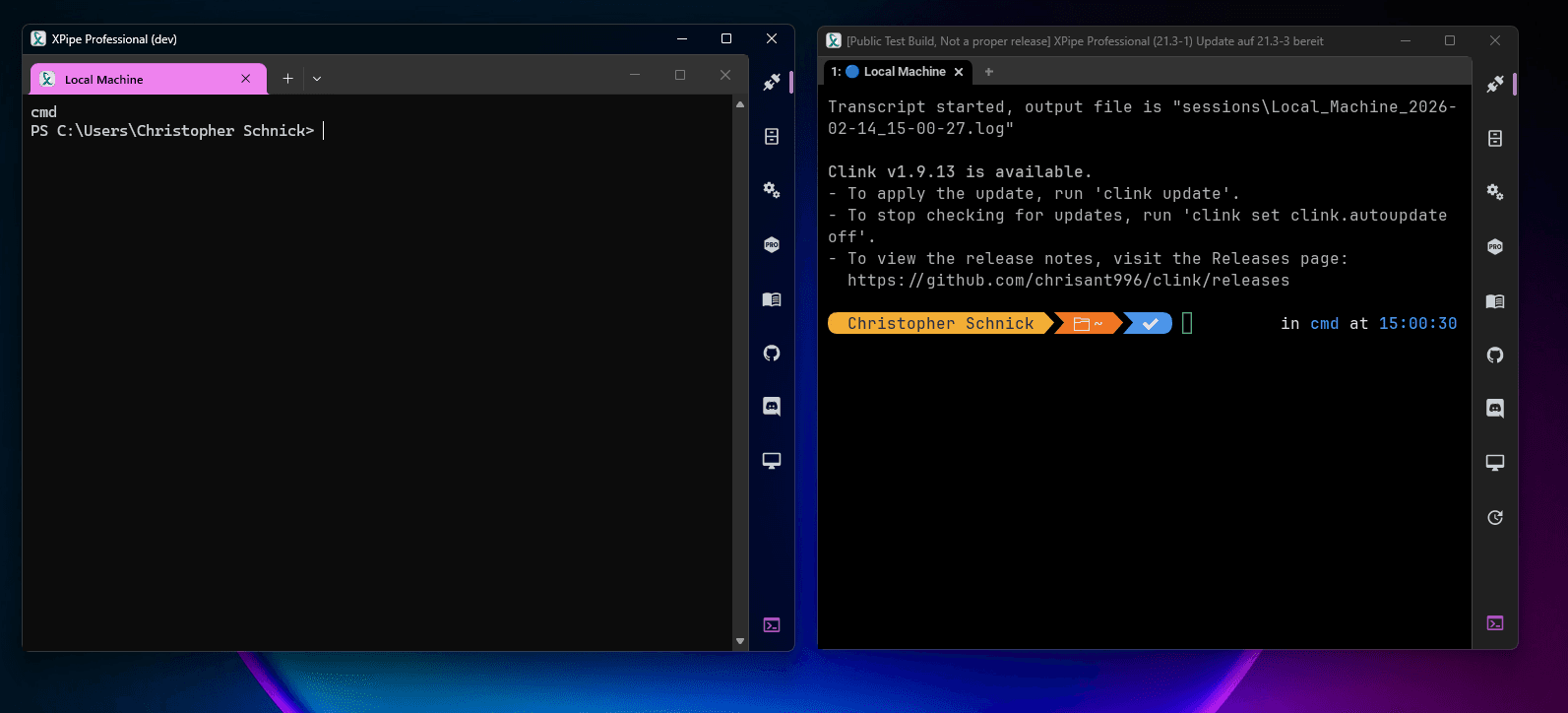
To control both XPipe and terminal with other operations like keyboard shortcuts, you will first have to make sure that the XPipe window has focus. If the terminal window has focus, the XPipe window will not receive those shortcuts and the terminal becomes detached.
In this example, you can see that the left XPipe window has focus, so it will receive any input. The right XPipe window does not have focus as the window frame is greyed out, meaning that the terminal will receive input:
Multiplexers
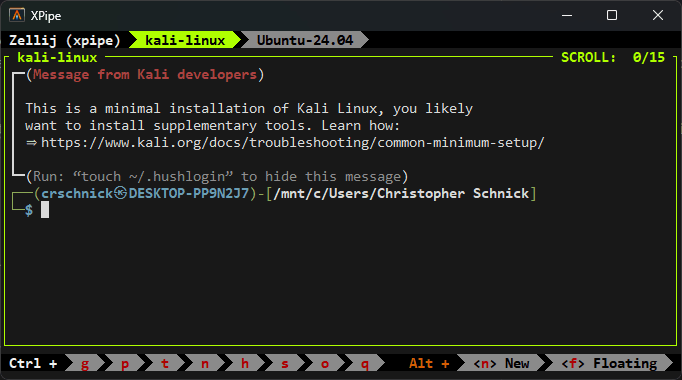
XPipe comes with integrated support for the terminal multiplexers tmux, zellij, and GNU screen. Using terminal multiplexers allows you to make proper use of terminals that don't support opening new tabs from XPipe. So if your favorite terminal here is listed as not recommended as it does not support tabs, using a multiplexer can fix this limitation.
For example, you can use a multiplexer to turn the Alacritty terminal, which does not support tabs, into a fully tabbed terminal with many additional features for your terminal sessions:
Windows environments
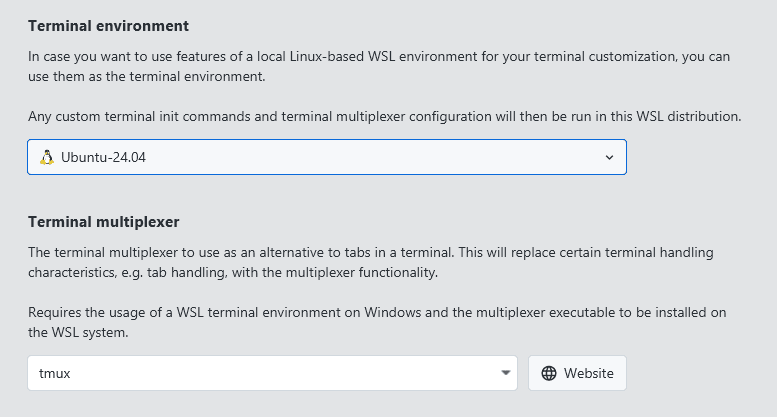
On Windows, most terminal multiplexers are not supported by default as they are designed to work on Linux systems. To work around this limitation, you can select a Linux-based terminal environment in the settings menu that is used to run the multiplexer instead. This terminal environment must be a WSL distribution installed on your local machine if you want to use multiplexers on Windows.
Prompts
Terminal prompt tools allow you to fully customize the prompts in your shell with additional information. XPipe supports the popular terminal prompts Starship, Oh My Posh, and Oh My Zsh. Here is how Starship looks like with the default configuration:
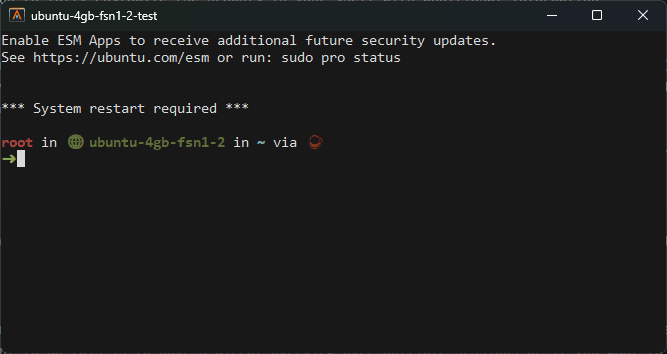
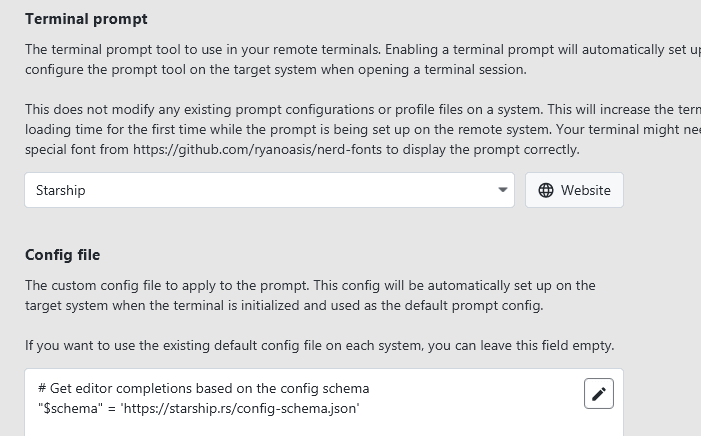
These prompts require installation on the remote system you access. When you enable a terminal prompt in the settings menu, XPipe will automatically download and install it on the system you connect to, granted that you marked the connection category to allow these kinds of modifications to a system. XPipe will also automatically set up the specified configuration on the remote system so that all your prompts are configured uniformly.
Configuration
You can configure everything in the terminal settings:
As described later, for some terminals, having a custom prompt might interfere with other prompt-based terminal integrations, e.g. for the Warp terminal. It is also possible that a prompt might not support a certain login shell. For example, if you are using Oh My Zsh, it won't work on any systems that do not start up into a zsh shell environment by default.
Split views
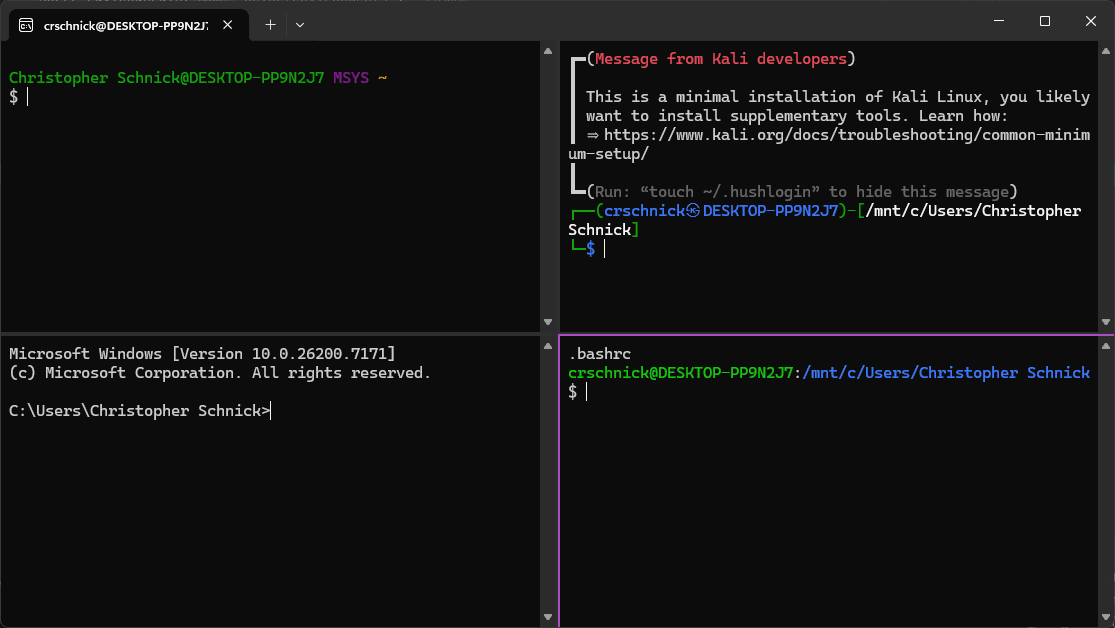
In addition to tabs, XPipe can also open multiple terminal sessions in one tab in a split view where the window is partitioned into multiple separate terminal sessions. The main reason why you would want to do this is to have a direct overview over multiple sessions or if you want to type a command to run into multiple terminal sessions in parallel. Especially when managing many systems, it might be very convenient to type a command into multiple sessions and see how they run in each one in parallel in an interactive fashion.
Here is how a four view split looks like when using Windows Terminal:
Support
These split views are only supported in certain terminal configurations:
- Windows Terminal
- Kitty
- Wezterm
- Any other terminals with zellij or tmux configured as the multiplexer
To use the split-view functionality, switch to batch mode and select the connections you want to open in the split view:

If the split view button is disabled, then your terminal configuration does not support split views.
Split direction
In the settings menu, you can also configure the preferred split strategy to control in which direction the splits should be performed:
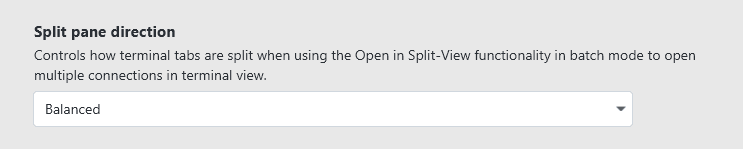
The balanced direction will try to give each terminal pane an equal amount of horizontal and vertical space if possible. The other two strategies horizontal and vertical will always split along one axis, meaning that you can stack many terminal panes next to each other if you want.
This split strategy is done in the best effort manner, meaning that it might happen that your terminal does not fully work with all direction settings. Some terminals have certain limitations or restrictions on how they can align split terminal sessions.
Broadcast mode
Broadcast mode, sync mode, or multi-exec, however you want to call it, refers to sending the same command input to all active split views at the same time. This makes running an interactive command in multiple sessions much easier:
How to use a feature like a command broadcast depends on your individual configuration:
- Windows Terminal: Broadcast input
- Kitty: Broadcast kitten
- Wezterm Not supported, custom script might work
- zellij: Sync tab mode
- tmux:
setw synchronize-panes
Logging
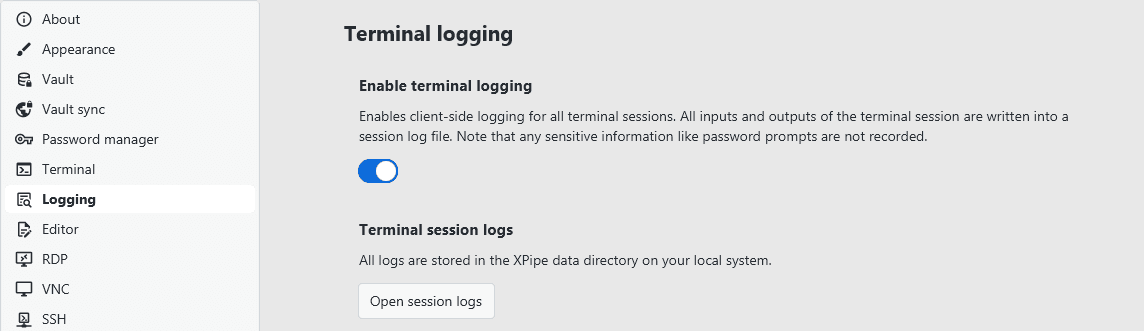
To keep track of past terminal sessions, you can enable terminal session logging in the settings menu:
Usage on Windows
If you are on Windows, the native PowerShell transcripts functionality lacks several features and is therefore not the recommended option to use. You can switch to using the better Linux-based script logging tools by using a WSL-based terminal environment in the settings:
Output format
When logging is enabled, all terminal sessions are recorded and written to log files. In practice, due to the sheer number of ANSI escape sequences for colored output and prompts, the raw logs might be cluttered with escape codes. For that reason, the logs are also cleaned to remove these escape sequences, and each session is logged to two files, one raw log and one cleaned text log:

Possible improvements
It is almost impossible to fully clean complex terminal output with lots of formatting, so there will always be some leftovers. What you can do is minimize the complexity by avoiding more visual-oriented shells like fish, custom terminal prompts, and things like zsh extensions. For example, in a standard bash shell environment on a system, logging is much cleaner than in a fish environment with a custom prompt on top.
Some terminals, for example Warp, also run various commands in your shell to realize their own functionality, such as advanced auto-completion. These commands, which are normally hidden in your terminal session, will show up when using logging and will clutter your output. Since you can't fully turn this behavior of in some terminals, it is recommended to switch to a more conservative terminal that does not implement custom functionality on top of shell sessions.
Furthermore, as mentioned before in the Windows section, you should use a WSL terminal environment on Windows to improve the quality of the output.
Noteworthy integrations
Here you can find a summary of the suitability of various popular terminal emulators to be used with XPipe. Terminals where there isn't a lot to mention aren't excplitily listed here.
Windows Terminal
On Windows, Windows Terminal is the recommended terminal of choice for XPipe. It supports all features and provides the best native integration on Windows. The early access variants called Preview and Canary are also supported by XPipe if you want to use them instead.
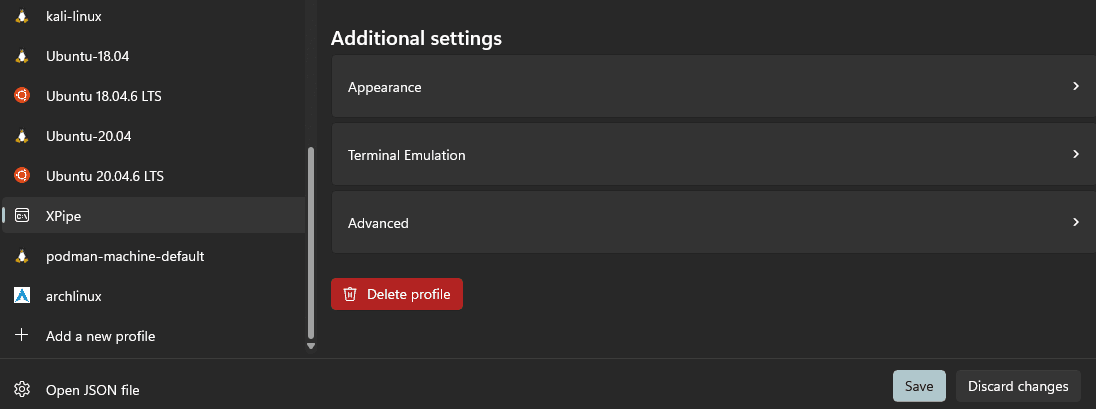
XPipe creates a new separate profile for connections started from XPipe. This allows you to customize, for example, the appearance or other terminal settings for XPipe connections specifically. You can find the profile in the settings menu:
Warp
If you are looking for an AI-assisted workflow, then Warp might be your terminal of choice. It supports most features required by XPipe and works on all operating systems. Limitations are missing tab color support, no prompt support, tabs not automatically closing, and a slow startup.
XPipe will automatically run a command to warpify your session. This is important to access to all the shell integrations of Warp:
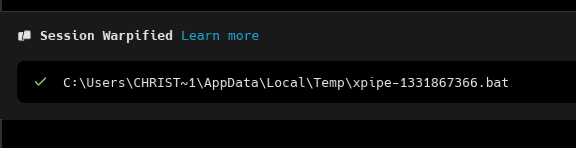
Custom terminal prompts like oh-my-zsh or starship are not compatible with Warp's shell integration and will prevent the shells from being warpified.
Alacritty
Alacritty is a terminal that offers good rendering performance but is kept basic in terms of features. It is available on all platforms. It does not support tabs by default. To effectively use it with XPipe, it is strongly recommended to make use of the terminal multiplexer integration of XPipe to add tabbing functionality.
If you are using a multiplexer regardless, alacritty is a good choice for a high-performant terminal that is available on all platforms.
WezTerm
WezTerm is a cross-platform terminal, with a good level of support for terminal features. The integration supports tabs properly and can be recommended to be used. It also supports split terminal views and command broadcast mode.
Kitty
Kitty terminal is currently available for Linux and macOS. It is highly customizable and supports all necessary features and is recommended. It also supports split terminal views and command broadcast mode.
To interact with kitty, XPipe communicates with the kitty socket interface. For that, it requires socat to be installed on Linux.
Ghostty
Ghostty terminal is currently available for Linux and macOS. The feature set it differs between these two platforms, however. On Linux, Ghostty is missing tabbing support and can only be recommended to be used with a terminal multiplexer. On macOS, tabs are supported, so it can be properly used without a multiplexer there.
Konsole
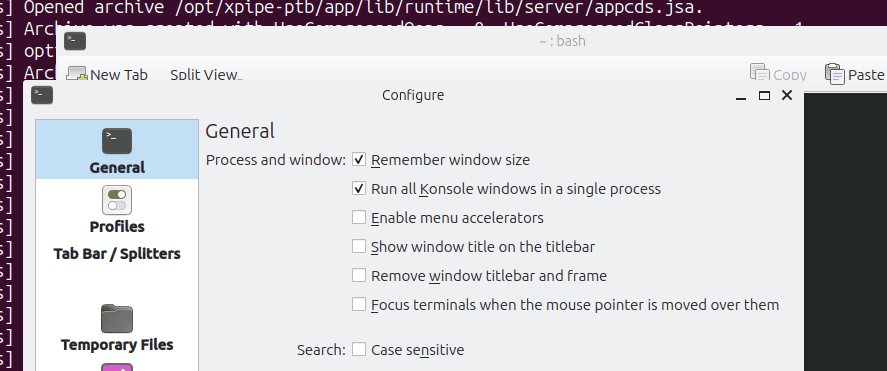
Konsole is the default terminal shipped with KDE. It can be used with XPipe effectively, provided that it is correctly configured to support opening tabs from the outside. By default, the single instance mode is disabled. It is, however, required for XPipe to be able to open tabs. You can enable this setting in the Konsole settings:
Gnome Console
Gnome Console, which is unrelated to Gnome Terminal, is the default terminal shipped with modern Gnome versions. This terminal supports all necessary features like tabbing support and is therefore recommended to be used with XPipe.
Windows Console Host
The Windows shells cmd.exe, PowerShell, and pwsh all come with their own console host window. If you don't have any other Windows terminals available, you can use them as well. This is, however, not recommended as they don't support tabs and various special characters and escape sequences. You should only use these terminals if you don't have any alternative.
Gnome Terminal
The old version of Gnome Terminal, which is no longer the default on modern gnome systems, is not recommended to be used with XPipe as it lacks the ability to open tabs from the outside. You can take a look at the more modern Gnome Console instead.
Tabby
Tabby is a cross-platform terminal. It is not recommended to be used with XPipe as it is rather unstable, prone to hang, and slow. It is supported by XPipe, but various large configurations might result in Tabby freezing. The underlying freezing issues are unlikely to be fixed as Tabby is only sparsely maintained.
Waveterm
Waveterm is a flexible terminal that can arrange individual tabs in tiles. It is rather difficult to use from XPipe as Waveterm does not permit external applications to open new tabs from the outside. The solution to this is to start XPipe as a child process from Waveterm like this so that XPipe has access to its environment variables:
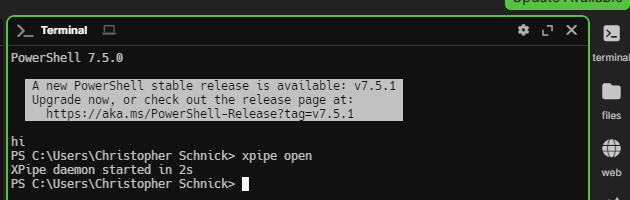
If you don't launch XPipe through Waveterm, XPipe won't be able to open any terminal sessions in it.
Foot
Foot is a terminal that offers good rendering performance but is kept basic in terms of features. It does not support tabs by default. To effectively use it with XPipe, it is strongly recommended to make use of the terminal multiplexer integration of XPipe to add tabbing functionality.
Custom command
If you are using a terminal that is not currently supported by XPipe, you can still launch it by specifying a custom command. XPipe will call the terminal command with a command to run a script file, so you don't have to configure anything. The only thing you need is to provide a command in the form of for example myterminal --tab -- $CMD. This will get resolved by XPipe it to something like myterminal --tab -- bash -c <script file>.sh.